Autocam
Who uses Once Sport Autocam?
Once Sport Autocam is trusted by coaches, analysts, and amateurs worldwide. Our users range from elite clubs and youth academies to amateur teams and passionate parents. Whether they're in Germany, Australia, or anywhere in between, they love using Once Sport Autocam because it's a simple, affordable automatic recording solution—perfect for capturing every game and training session.
Can I try Once Sport Autocam for free?
Yes you can try Once Sport Autocam for free, just contact our team and we will get back to you as soon as possible.
Whatsapp: +4367764304109
Email:
info@once.sport
Do I need an internet connection to use it? Can I use it offline?
For cloud solution you need an internet connection to upload and download the files. For local solution you do not need an internet connection.
How many recordings can I make?
Depends which type of the subscription you decide to purchase. You can check full pricing on this link.
What are the recommended system requirements for using Once Sport Autocam?
To ensure optimal performance when using Once Sport Autocam, your system should meet the following requirements:
- Operating System:
- MacOS: Sequoia or newer
- Windows: 10 or higher
- Processor: Intel Core i5 or better
- Memory (RAM): 8 GB or more
- Additional Software: Visual C++ Basic x64 and x86 (these will be installed automatically with Once Sport Autocam)
If you are also looking to use Once Sport Autocam for live streaming, you'd need a stronger device. For details, please reach out to us at info@once.sport or via phone, WhatsApp, or Viber at +43 677 643 0410 9
What operating systems does Once Sport Autocam support?
Once Sport Autocam is compatible with Windows, macOS, and Linux. You can download the appropriate version for your system on this link.
For Linux download please contact us at info@once.sport
How does it work?
To use the Autocam system, position the camera in the middle of the pitch, ensuring it covers the entire field. Place the camera as high as possible, ideally at least 6 metres above the ground and 3 metres from the sideline. Record the game and stream it live if desired. After the game, process the recording with our software to produce TV-like footage, perfect for analysis or other purposes.
How long does it take to process a video?
The processing time is influenced by your computer's performance and the video's specifications. A more powerful computer, along with a shorter video, smaller resolution, and lower frame rate, will lead to faster processing. With a sufficiently powerful computer, processing can occur in real-time, enabling you to stream the video live on YouTube.
How does the cloud solution work?
Simply upload your video to our server, where it will be processed using Once Sport Autocam. Once the processing is complete, you will receive the processed video back in 1080p resolution. The processing time can take up to 24 hours; however, it can be shorter if you upload it at a pre-scheduled time that we agree upon.
Which camera do you recommend?
Autocam is a software that can work with many different cameras. We can offer guidance in selecting appropriate equipment, and some of our recommendations include:
- Reolink Duo 3 WiFi – Portable Solution
- Reolink Duo 3 or Milesight AI Dual Sensor Panoramic – Fixed Solutions
For personalized assistance in choosing the right camera or other equipment, please contact us directly at info@once.sport or fill out our Autocam Form.
What are the minimum camera resolution requirements? What resolution and frame rate does Once Sport Autocam support?
You can use any video resolution with Once Sport Autocam, but we recommend using at least 2K for the best results. For optimal performance, use 4K video, and for the highest quality, 8K video is ideal. Our algorithm processes footage by cropping parts of the entire video, so higher resolution input results in higher resolution output.
Once Sport Autocam does not impose a fixed software limit on video resolution or frame rate.
High resolutions (including 8K) and common frame rates (25, 30, 50, 60 fps) are supported, provided that:
- Both cameras use identical recording settings
- The panoramic video is correctly stitched before importing
- The computer has sufficient hardware performance (CPU, GPU, RAM)
Actual limits depend on the user's hardware, not the software itself. For best performance, an NVIDIA RTX series GPU is recommended.
In which sports can I use One Sport Autocam?
Once Sport Autocam is a versatile tool suitable for a variety of sports, including football, basketball, handball, and handball. It can be used for both recording and streaming these games.
What is the price?
Once Sport Autocam offers both cloud-based and offline solutions tailored to different user needs:
Cloud Solution:
- Price: €5 per game
- Details: Upload your game footage to Once Sport's servers, and receive processed, TV-like footage within 24 hours.
Offline Solution:
- For Clubs:
- Monthly Subscription: €38 per month
- Yearly Subscription: €342 per year
- Details: Process up to 50 hours of footage per month using the Once Sport Autocam software installed on your computer.
- For Private Use:
- Monthly Subscription: €19 per month
- Yearly Subscription: €171 per year
- Details: Process up to 50 hours of footage per month with the same software capabilities as the club version.
These options provide flexibility for both organisations and individual users to choose a plan that best fits their video processing needs.
Where can I stream to?
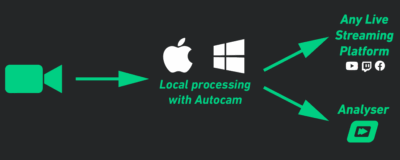
Once Sport Autocam supports streaming to platforms like YouTube, Twitch, Facebook, and any other service that uses RTMP for streaming.
Is Once Sport Autocam an alternative for Veo?
Yes! Once Sport Autocam is an automated recording solution and a viable alternative to Veo, Pixellot, Spiideo, Hudl Focus, and other similar tools for automated sports filming.
Which tripod could I use?
For optimal performance with Once Sport Autocam, we recommend the following tripod models:
BRESSER BR-C6M Heavy Duty Tripod with Wheels
- Maximum Height: 600 cm
- Load Capacity: Up to 30 kg
- Features: Equipped with wheels for easy mobility, this tripod is designed for video, film, and photo studios, providing robust support for heavy equipment.
Manfrotto Overhead Stand 65 Steel with Wide Base (A3065CS)
- Maximum Height: 638 cm
- Load Capacity: Up to 40 kg
- Features: Constructed from chrome-plated steel, this stand includes a built-in grip head and a 1 1/8″ receiver, making it ideal for supporting overhead frames and heavy equipment.
- Maximum Height: 400 cm
- Load Capacity: Up to 10 kg
- Features: Durable aluminium construction with adjustable height, wide base, and standard mounting thread. Lightweight and folds to 120 cm for easy transport and storage.
All tripods offer the stability and height necessary for capturing high-quality footage, ensuring your equipment is securely supported during recording sessions.
Do I need to buy the equipment from Once Sport directly?
No, you don't need to buy equipment for Once Sport Autocam from Once Sport directly. You can get a quote for the equipment and the software here or you can get it yourself. In that case, we'd provide you with information about the recommended equipment, you'd order and purchase it yourself, and we'd provide you with the software and the instructions.
For personalized assistance in choosing the right camera or other equipment, please contact us directly at info@once.sport or fill out our Form.
Can I use footage from 2 GoPro or 2 DJI cameras and process it with Once Sport Autocam?
Yes, you can use footage from 2 GoPro (Hero 11 or newer) or 2 DJI cameras, and then stitch it and process it with the Once Sport Autocam software. It's a quick and painless process that generates great results, without the need for using any other software.
For setup, you can use our camera mount. Download the 3D print files HERE. You'll also need a standard 1/4″ threaded insert threaded insert to heat and fit into the mount.
What are the recommended camera settings for GoPro or DJI cameras?
Recommended settings vary by camera model. Here are our recommendations:
GoPro Hero 10
- Resolution: 4K (4:3)
- Field of View (FoV): Wide
- Hypersmooth: Off
- Frame Rate: any
GoPro Hero 11-13
- Resolution: 5.3K (8:7 or 16:9)
- Field of View (FoV): Wide
- Hypersmooth: Off
- Frame Rate: any
DJI Action 4
- Resolution: 4K (4:3 or 16:9)
- Field of View (FoV): Wide
- Stabilization: Off
- Frame Rate: any
How to create a calibration file for Once Sport Autocam?
- Set the camera exactly as you will use it for the match: 4K+, FoV 120+ (or higher), stabilization OFF. These camera settings must remain the same both when recording the calibration pattern and when recording your games.
- Display the calibration pattern on a flat surface (printed or on a TV). The entire pattern must be visible in the frame: calibration pattern
- Record 2 to 3 minutes: move the pattern through all corners and edges of the frame, at different distances, with rotations and tilts. Pause briefly in each position (no motion blur).
- Send the original video (no editing) plus the camera model and settings (resolution, fps, FoV) to info@once.sport (if the file is large, send it via https://www.swisstransfer.com).
- Example calibration video
How can I access Reolink camera features through Once Sport Autocam?
With the Reolink camera integration in Once Sport Autocam, you can record and preview videos for processing – all directly in the software. You can even use the live-stream feed as input. To get started, select the Reolink camera tab, and all available Reolink cameras on your network will appear. Choose the camera you want, log in, and all its functionalities become active.
Is there a video tutorial that shows how to use the latest version of Once Sport Autocam?
Absolutely! Check out our video tutorial to guide you through Once Sport Autocam's workflow and features. Watch the video to understand how to set up, record, and process footage with Once Sport Autocam.
Can I protect the camera from the wind?
If you need a wind bracing kit, we recommend the Manfrotto 087WBK.
How can I reduce wind noise?
To reduce wind noise when recording, you can order a windscreen muff. This accessory helps to minimise wind interference, ensuring clearer audio quality in your recordings. One option is the SUNMON Camera Windscreen.
