How to Set Up Once Sport Analyser for Cloud Support: A Step-by-Step Guide
October 16, 2024
Hello everyone, and welcome to this easy guide on setting up Once Sport Analyser for cloud support! With this feature, you’ll be able to load online videos or streams from platforms like Google Drive, Dropbox, You Tube, VEO, and many others. Whether you’re a coach, analyst, or player, this capability will greatly improve your ability to manage and analyse media directly within the software.
What is yt-dlp?
Before we dive into the tutorial, let’s talk about yt-dlp .YT-DLP is an open-source command-line tool that allows you to download videos from various online platforms. With it, you can pull media from cloud sources and bring it into Once Sport Analyser for analysis, making it an essential component for cloud support.
Windows Setup Guide
To begin, you’ll need to open Power Shell, a tool that allows you to run commands on your computer.
- Press the Windows key on your keyboard.
- Type “Power Shell” into the search bar.
- Click on the Power Shell app to open it.
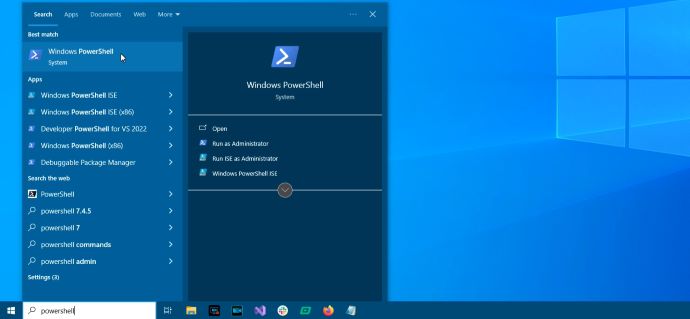
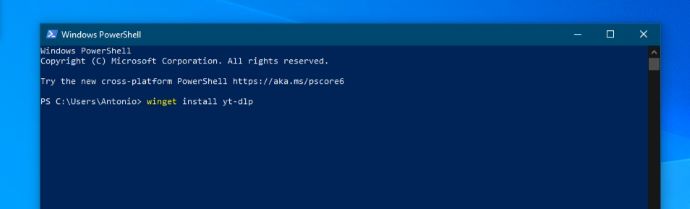
Once Power Shell is open, you’ll install yt-dlp using a simple command. In Power Shell, copy and paste the following command and press Enter:
winget install yt-dlp
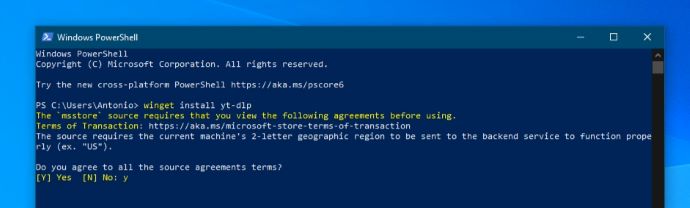
After that confirm that you agree to all the source agreement terms. This command will initiate the installation of yt-dlp on your system.
After the installation is complete, you’ll have yt-dlp ready to download cloud videos directly into Once Sport Analyser. Now, you’re all set to load and analyse videos from platforms like Google Drive, You Tube, Dropbox, Veo and many more! To make it even easier, here’s a video tutorial walking you through the entire process:
mac OS Setup Guide
This guide is specifically for mac OS devices with Apple Silicon chips, such as M1 and M2. If you’re using an Intel-based Mac, these steps may not work correctly.
To begin, you’ll need to use Terminal, which functions similarly to Power Shell on Windows.
- Go to Applications>Utilities>Terminal .
- Alternatively, press Cmd + Space , type “Terminal,” and press Enter .
Once Terminal is open, you’re ready to proceed with the next steps.
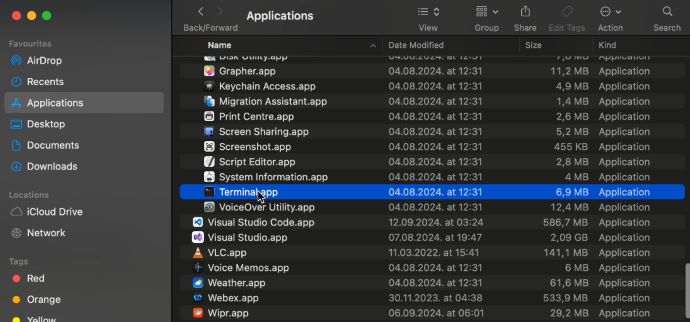
In the next step, you have to install Homebrew, a package manager that simplifies software installation on mac OS, such as yt-dlp. To install Homebrew, open Terminal (as described earlier), then copy and execute the following command:
/bin/bash -c "$(curl -fsSL https://raw.githubusercontent.com/Homebrew/install/HEAD/install.sh)"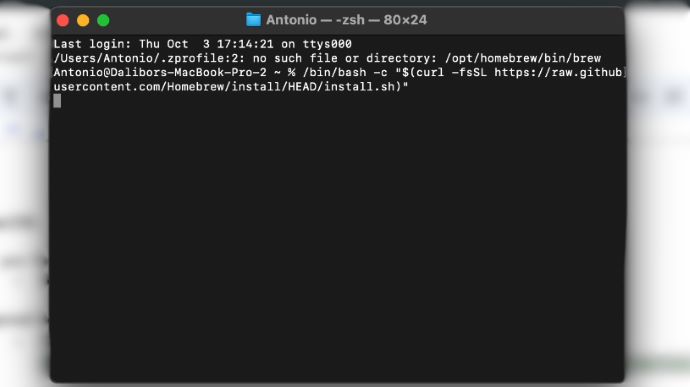
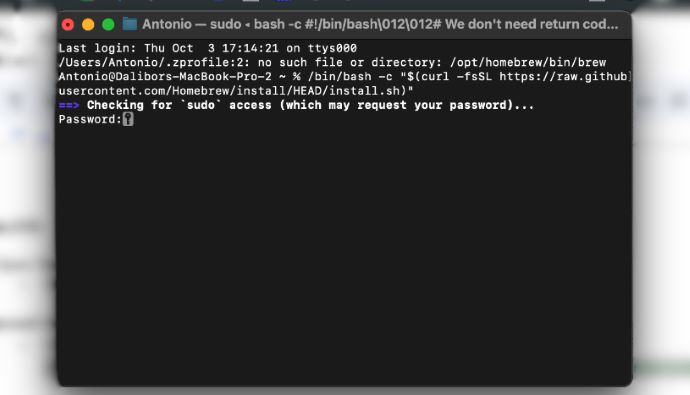
During the Homebrew installation, you might be asked to provide your administrator password . Simply type it in and press Enter(the characters won’t be visible as you type). This will begin the installation of Homebrew on your Mac. Follow the prompts in Terminal to complete the setup.
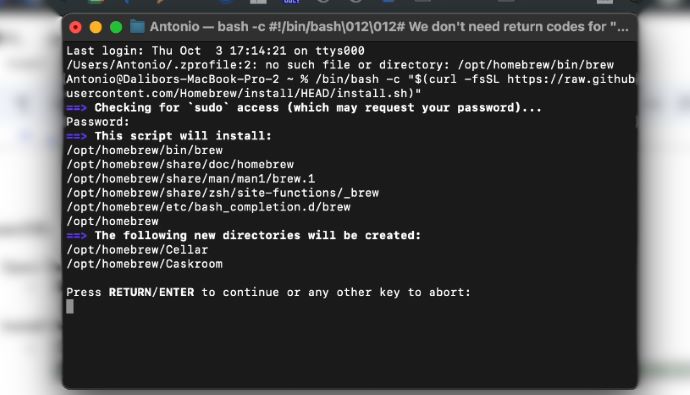
After Homebrew is installed,Terminal will show a command to set the Homebrew PATH . This step is necessary for your system to recognize the Homebrew installation. Copy and paste the command provided by Terminal into the same window and press Enter .
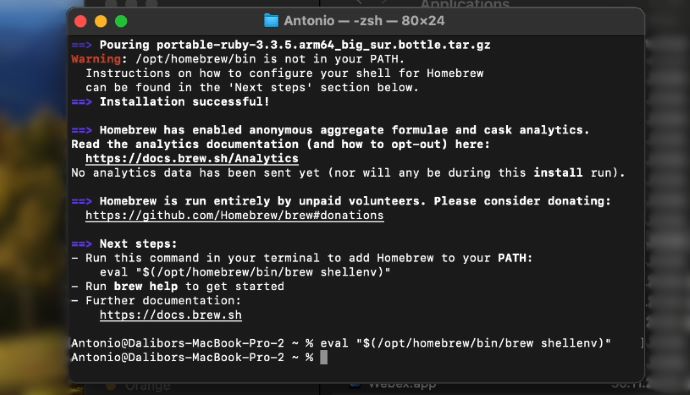
Now that Homebrew is installed and configured, you can use it to install yt-dlp. In Terminal , copy and paste the following command and press Enter :
brew install yt-dlp
This will download and install yt-dlp onto your Mac.
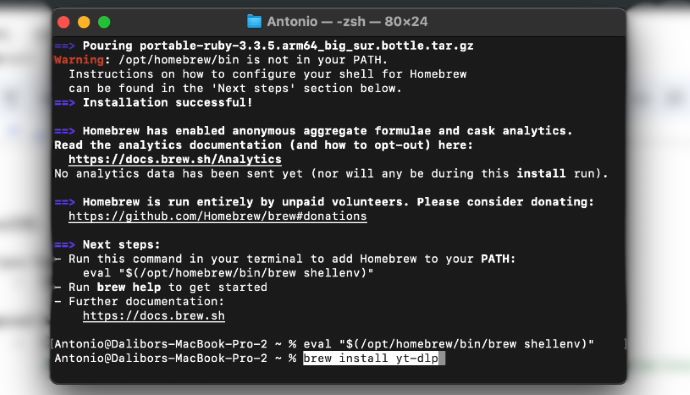
Once yt-dlp is installed, you’re all set to download videos from cloud platforms and analyse them in Once Sport Analyser . For a visual walkthrough of this process, check out our detailed video tutorial:
Additional Step for Some mac OS Users (Deno Installation)
Certain advanced yt-dlp features require Deno, a secure Java Script/Type Script runtime. Windows users get Deno automatically when installing yt-dlp through Winget, but mac OS users do not. If yt-dlp shows an error such as “Deno is required for this feature”, simply install it with this command:
brew install deno
After Deno is installed, yt-dlp will work with all cloud sources and new features without any additional steps.
Wrapping Up
We hope this guide helps you set up Once Sport Analyser for cloud support! With yt-dlp, you can easily download and manage video content from the cloud, making your workflow smoother and more efficient.
This setup is just the first step in our exciting journey toward fully cloud-based sports analysis. If you encounter any issues during the setup or have any questions, don’t hesitate to reach out to us at +4367764304109 or via email at info@once. sport. We’re here to assist you every step of the way! Stay tuned for more updates and features coming soon. Happy analysing!
