Video format not supported? Learn how to convert videos with a free & easy solution in steps with screenshots
January 11, 2021
You have recorded the game, but you can’t start the analysis because it is not in the supported video format and the video can’t be played? That problem can be solved in just a few minutes – using a video converter.
Video converters are computer software that can change the storage format of digital video. They can recompress the video to another format in a process called transcoding (direct digital-to-digital conversion), or can simply change the container format without changing the video format. Here are the step by step instructions . The software we recommend is free, without watermarks, ads or in-app purchases.
Install open-source VLC media player from its official website https://www. videolan. org/vlc/index. html
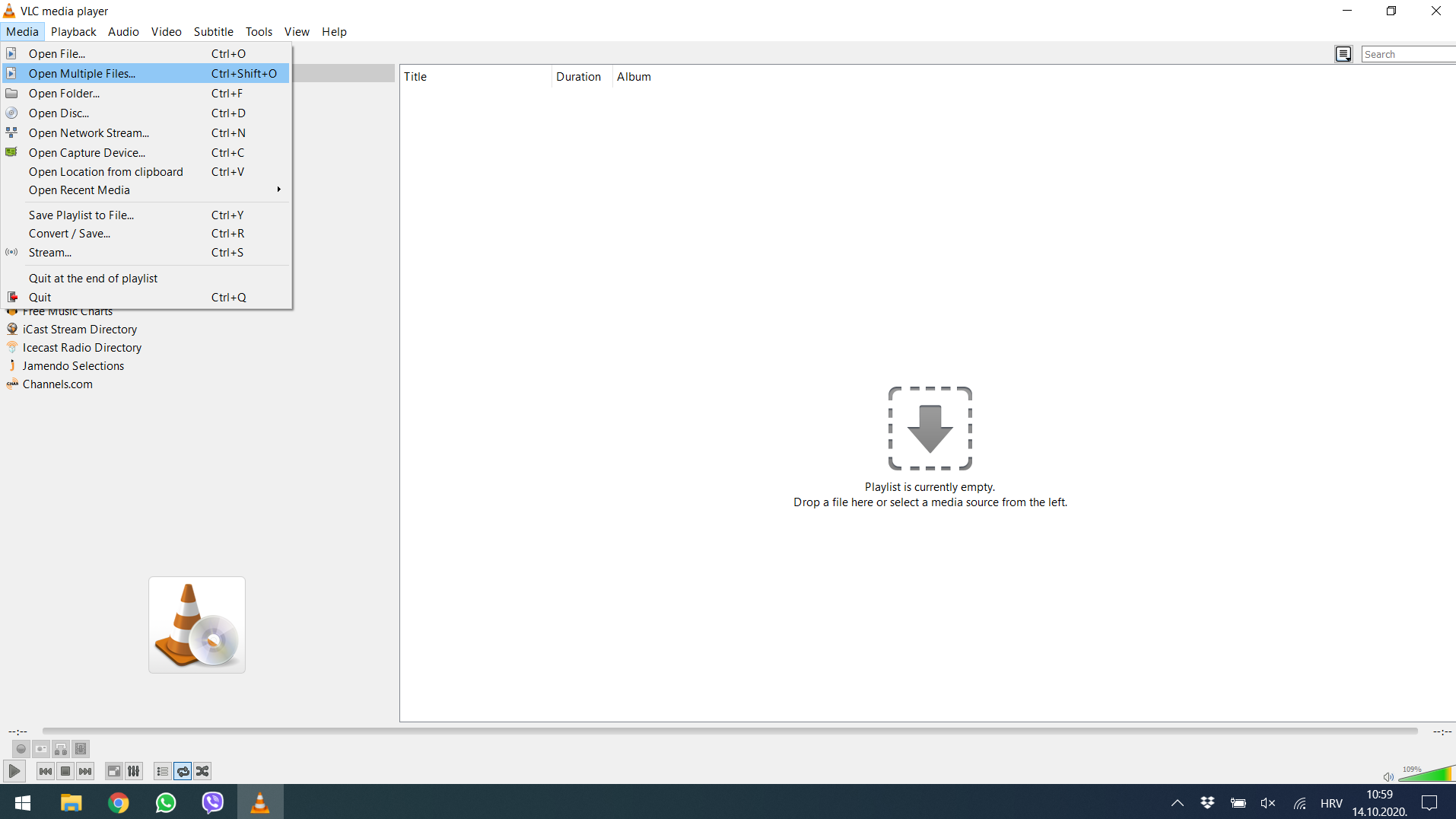
1. Launch VLC media player and click on Mediamenu, select Open Multiple Filesfrom the drop-down menu.
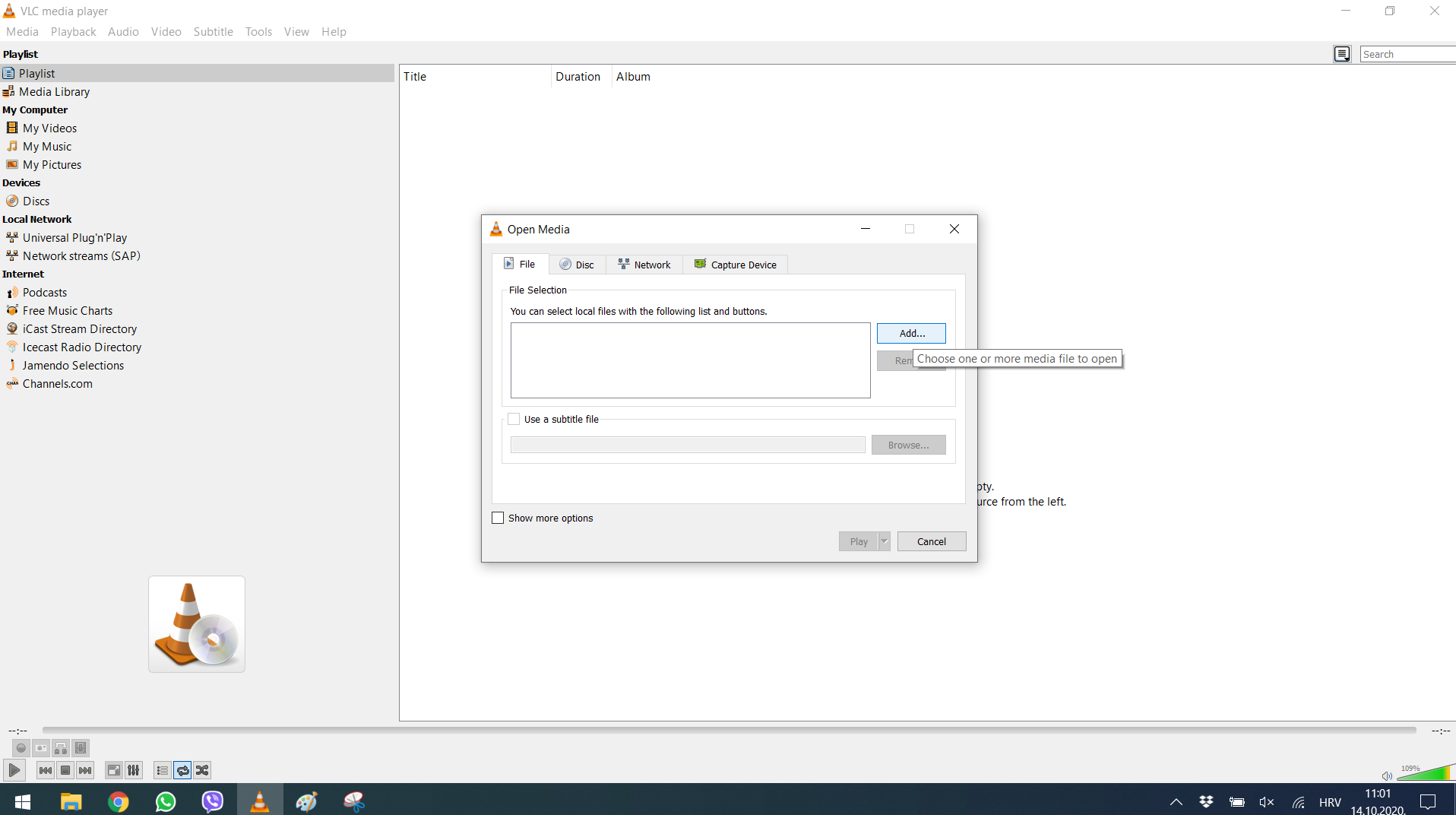
2. Click on the Addbutton under the Filetab, and add the file you want to convert.
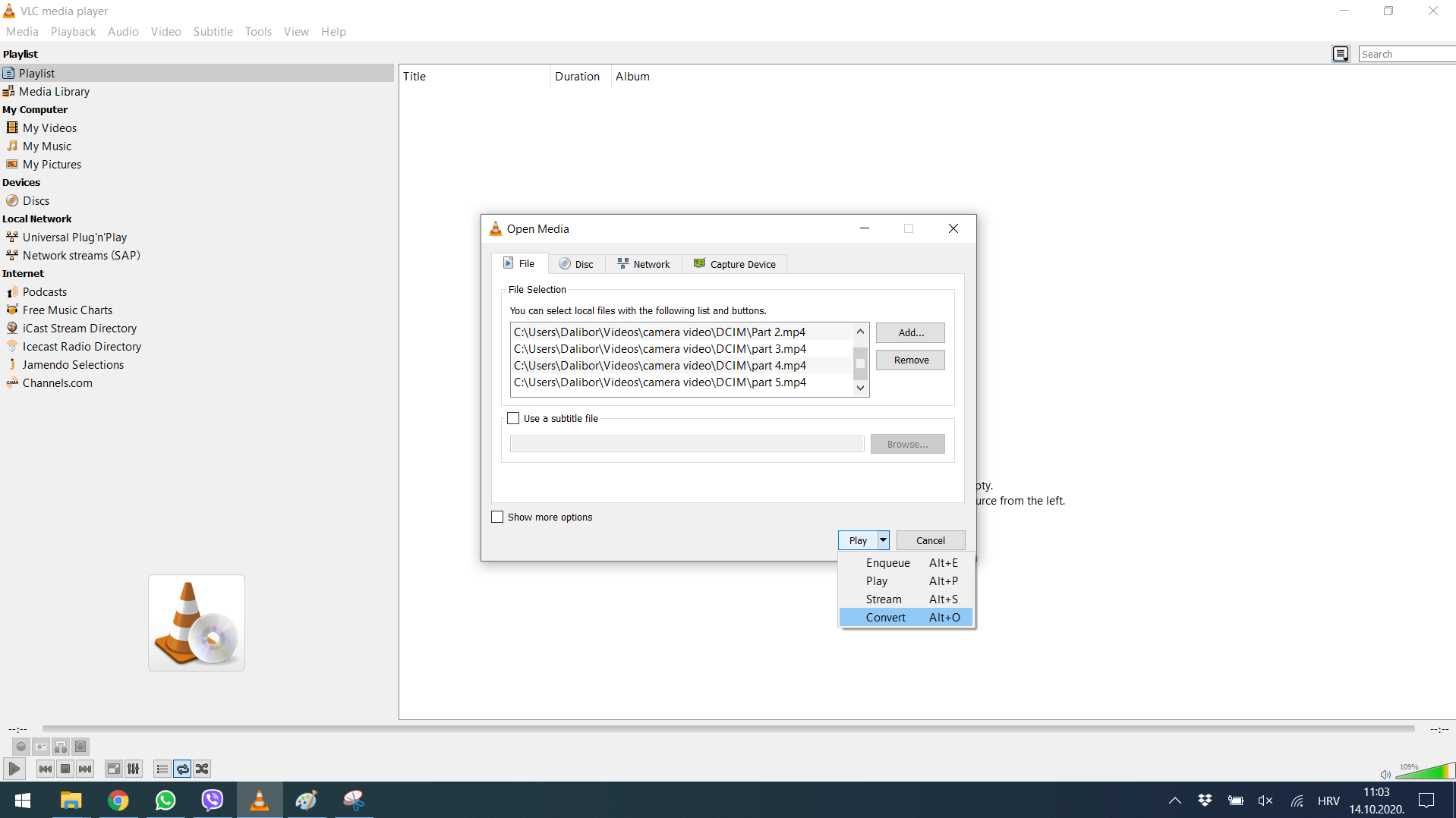
3. Go to the Playbutton and click on the Convertfrom the drop-down menu.
4. You will now need to set the location for saving files, and you can keep the converted file anywhere you want on your computer.
5. If you want to change the resolution or convert to another format, click on settings. In the video codecstab change resolution and in the encapsulationtab change video codec (we recommend 1280×720px, mp4 codec).
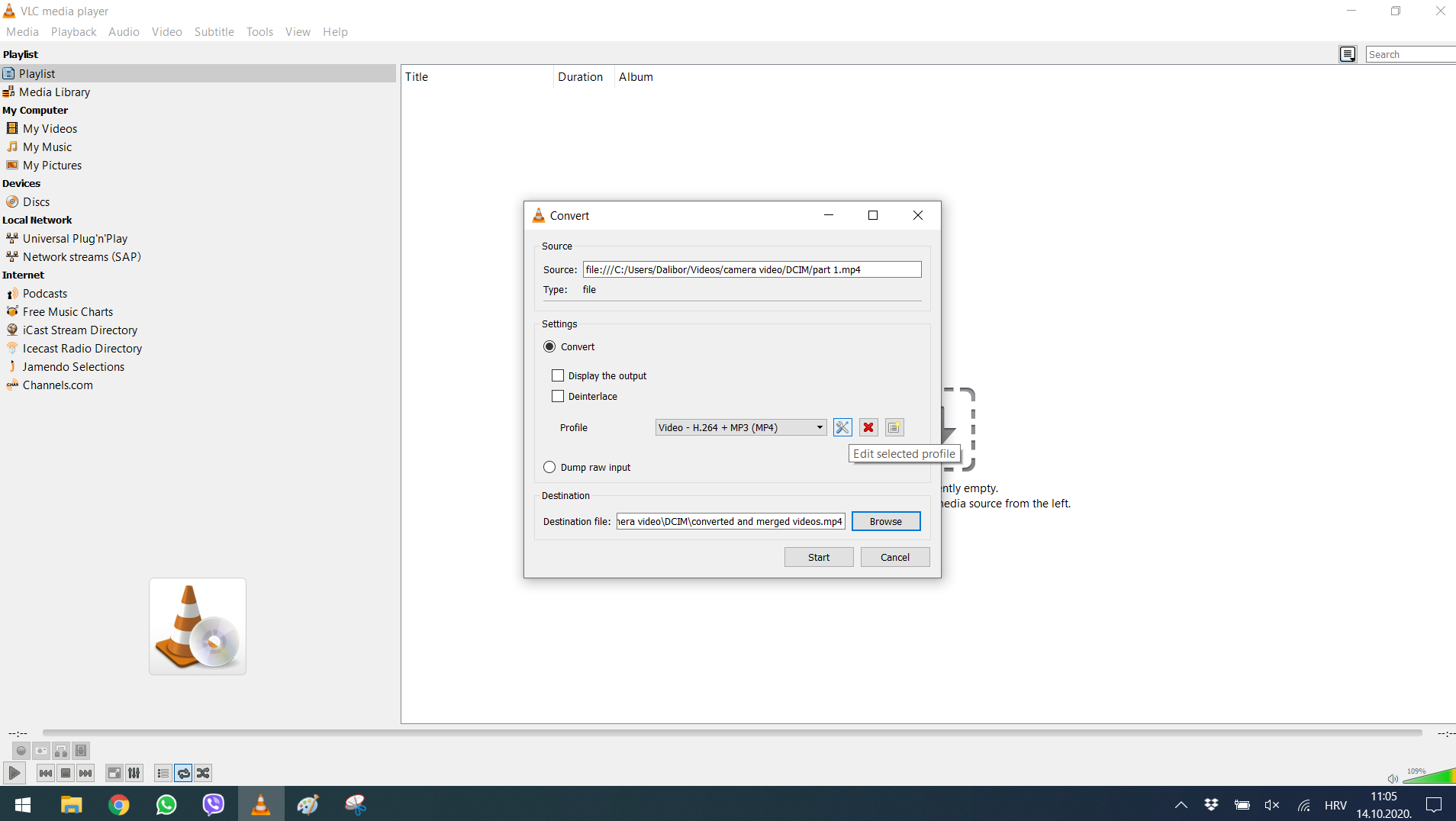
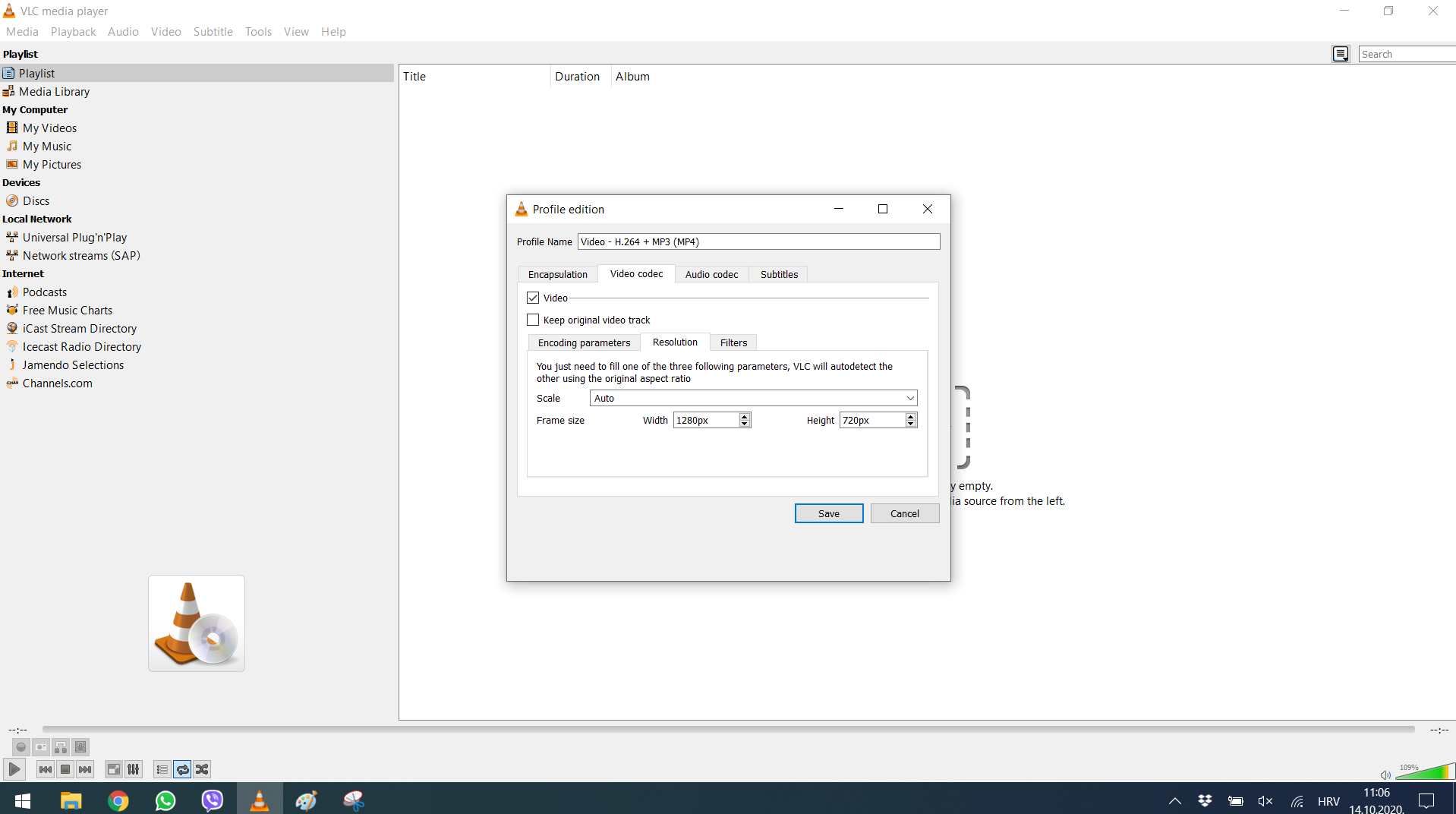
6. Click Startuntil merging is finished.
If you are reading this and you haven’t tried video analysis yet, or you aren’t satisfied with the results, visit once. sport. Download a free trial of Once Video Analyzer PRO! Once is a simple-to-use tool for professional video analysis with TV like graphics. You can get a video tutorial free-of-charge as well. Simply contact us at info@once. sport to schedule a call so we can show you all of the program features and answer any questions you may have.
